System and Data Retention
Account-wide switches, how long data is kept, and how to clear a system's data.
System
Go to Settings > System.
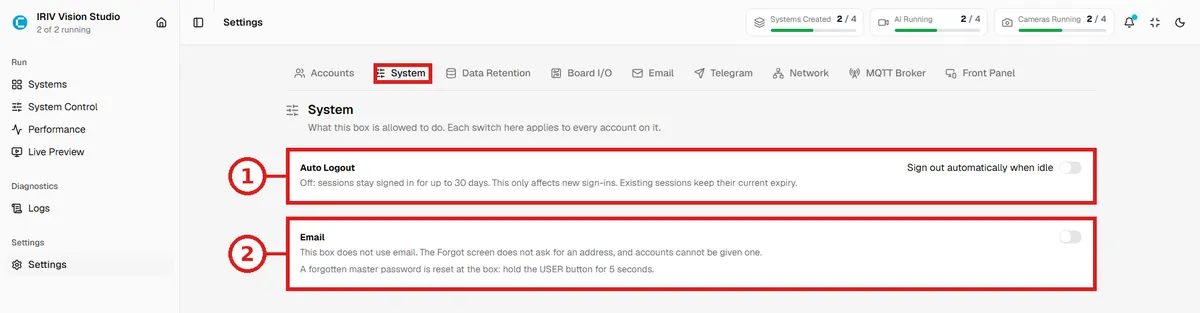
The System tab has two switches that apply to every account on the device.
-
Auto Logout - Turn on Sign out automatically when idle to log out inactive sessions; when off, sessions stay signed in for up to 30 days. The change only affects new sign-ins; existing sessions keep their current expiry.
-
Email - Switch email on or off. When off, the Forgot screen does not ask for an address, and accounts cannot be given one. Without email, a forgotten master password is reset at the device by holding the USER button for 5 seconds.
Data Retention
Go to Settings > Data Retention.
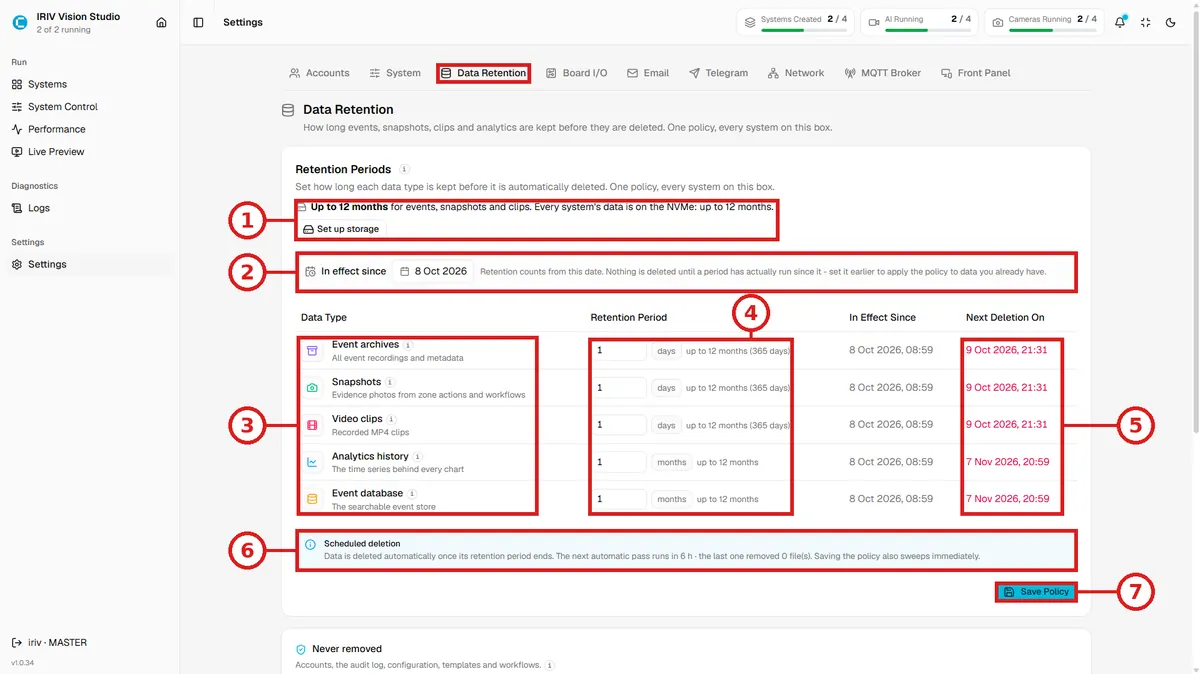
The Data Retention page consists of several sections that you should be familiar with. One policy applies to every system on the device.
-
Storage - All system data is stored on the NVMe drive and can be kept for up to 12 months. Use Set up storage to configure it.
-
In effect since - Retention is counted from this date; set it earlier to apply the policy to data you already have.
-
Data Type
-
Event archives - all event recordings and metadata.
-
Snapshots - evidence photos from zone actions and workflows.
-
Video clips - recorded MP4 clips.
-
Analytics history - the time series behind every chart.
-
Event database - the searchable event store.
-
-
Retention Period - Enter how long each data type is kept, in days or months (up to 12 months).
-
Next Deletion On - When the next automatic deletion for each data type will happen.
-
Scheduled deletion - Deletion runs automatically every few hours; the note shows the next pass and how many files the last one removed.
-
Save Policy - Click to save your periods; saving also runs a deletion pass straight away.
Delete a System's Data and Trash
Scroll further down the Data Retention page.
-
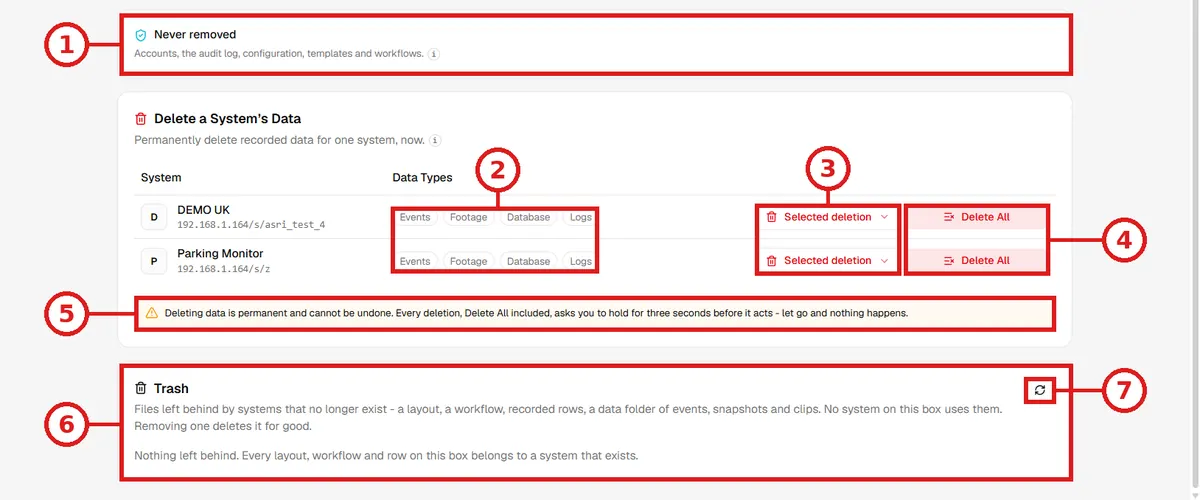
Never removed - Accounts, the audit log, configuration, templates and workflows are never deleted by the policy.
-
Data Types - Each system has its own row with four data types: Events, Footage, Database and Logs.
-
Selected deletion - Choose which data types to clear from the drop-down, then delete only those.
-
Delete All - Clears every data type of that system at once; the system itself is kept.
-
Hold to confirm - Every deletion asks you to press and hold for 3 seconds; let go before then and nothing happens.
-
Trash - Holds files left by deleted systems (layout, workflow, database rows and data folder). Removing an item deletes it for good.
-
Refresh - Updates the Trash list.
Deleting is permanent; hold the button for 3 seconds to confirm.
Source: IRIV EdgeAI Studio User Manual, Rev 1.0 (Draft), Cytron.