Connect and Sign In
Use the OLED screen and the USER button on the front of the IRIV to find the address of IRIV EdgeAI Studio, then sign in from any browser on the same network.
Power Up the IRIV EdgeAI CM5
Power on the IRIV EdgeAI CM5. If this is your first time setting up the device, refer to the Getting Started with IRIV EdgeAI CM5 page.
Connect Your Computer to the IRIV
IRIV EdgeAI Studio runs as a server on the device and can only be accessed remotely by another computer within the same network. If you are setting up the device for the first time, follow Option A below.
Option A: Connect via Hotspot (Access Point Mode — Default)
-
Press the USER button repeatedly until the OLED display shows the ACCESS DASHBOARD screen.
-
On your computer, open the Wi-Fi settings and connect to the network name (SSID) displayed on the OLED screen.
-
Enter the Wi-Fi password shown on the OLED screen to connect to the device's access point.
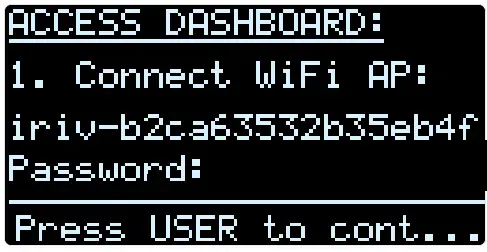
Access Dashboard in Access Point Mode
- Press the USER button repeatedly until the IP ADDRESSES screen appears on the OLED display. If the IP address displayed for wlan0 is 10.42.0.1, the device is operating in Hotspot (Access Point) mode.

Hotspot IP Address
Change the default access point password later in Settings > Network.
Option B: Ethernet Connection
-
Connect the IRIV EdgeAI device to your router using an Ethernet cable. Press the USER button repeatedly until the IP ADDRESSES screen appears on the OLED display.
-
Locate the IP address listed under eth0 or eth1, depending on which Ethernet interface is connected and assigned an IP address.
Ethernet IP Address
Option C: Wi-Fi Connection
-
Press the USER button repeatedly until the IP ADDRESSES screen appears on the OLED display.
-
Check the IP address displayed under wlan0. If the address is different from 10.42.0.1, the device is operating in Wi-Fi mode.

Wi-Fi IP Address
Open IRIV EdgeAI Studio and Log In
Open a web browser on your computer and enter the following address in the address bar:
https://<IRIV-IP-address>/
Replace <IRIV-IP-address> with the IP address displayed on the device's OLED IP ADDRESSES screen.
Handle the browser security warning
When you first access IRIV EdgeAI Studio, your browser may display a “Your connection is not private” warning. This may occur because the device uses a self-signed security certificate that your browser does not automatically trust.
Proceed only if you have confirmed that the IP address belongs to your IRIV EdgeAI device and that this warning is expected in your setup.
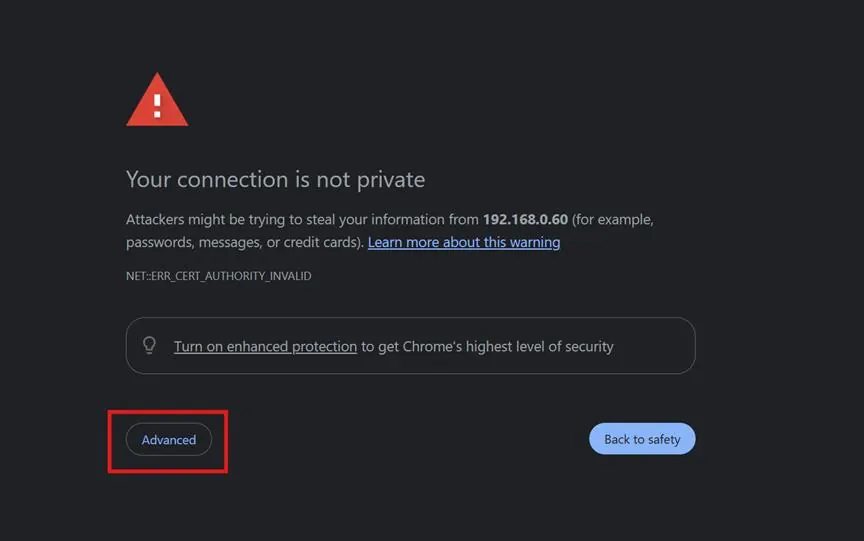
Browser Security Warning When Accessing IRIV EdgeAI Studio
Click Advanced
On the warning page, click Advanced to display additional options.

Advanced Options on the Browser Security Warning Page
Proceed to the device's web interface
If you have verified that you are connecting to your IRIV EdgeAI device and the warning is expected, click Proceed to <IRIV-IP-address> (unsafe) to continue to the IRIV EdgeAI Studio sign-in page.
For example, if the device's IP address is 192.168.1.60, the link may read Proceed to 192.168.1.60 (unsafe).

Proceed to the IRIV EdgeAI Studio Web Interface
Log in to IRIV EdgeAI Studio
When the sign-in page appears, enter your login credentials to access the software.

IRIV EdgeAI Studio sign-in page
Create the Master Account
On your first visit, you will need to create the master account by entering a username and password. Choose a secure password and keep it safe.
After creating the master account, use the sign-in page to access IRIV EdgeAI Studio.
The sign-in page consists of the following elements:
-
Username - Enter your master account username.
-
Password - Enter your account password. Click the eye icon to show or hide the password.
-
Sign In - Click this button to log in and open the main interface.
-
Forgot Password - Click this link to open the password reset page if you forget your master account password.
-
Light/Dark Mode - Click this icon to switch between the light and dark themes.
On first use, no account exists yet. Create the master account by choosing a username and password. Keep your password safe.
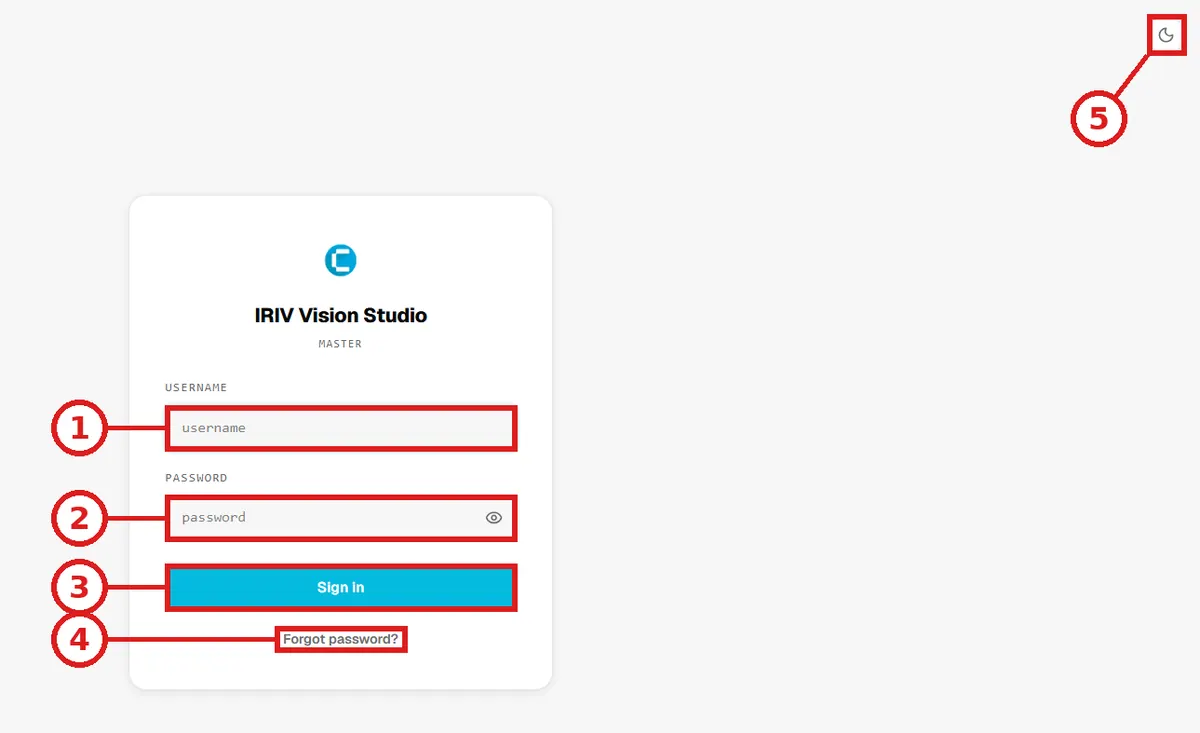
IRIV EdgeAI Studio Master Account Sign-In Page
Forgot the master password
If you forget your master account password, follow these steps to reset it.
-
On the sign-in page, click Forgot Password to open the password reset page.
-
On the IRIV device, press and hold the USER button for 5 seconds.
-
Check the OLED screen for the 6-digit reset code. The code remains valid for 10 minutes.
-
Enter the 6-digit code in the Code on the Screen field on the password reset page.
-
Enter your new password in the New Master Password field.
-
Enter the new password again in the Repeat New Password field to confirm it.
-
Click Set master password to complete the reset.
No email is needed to reset the master password.
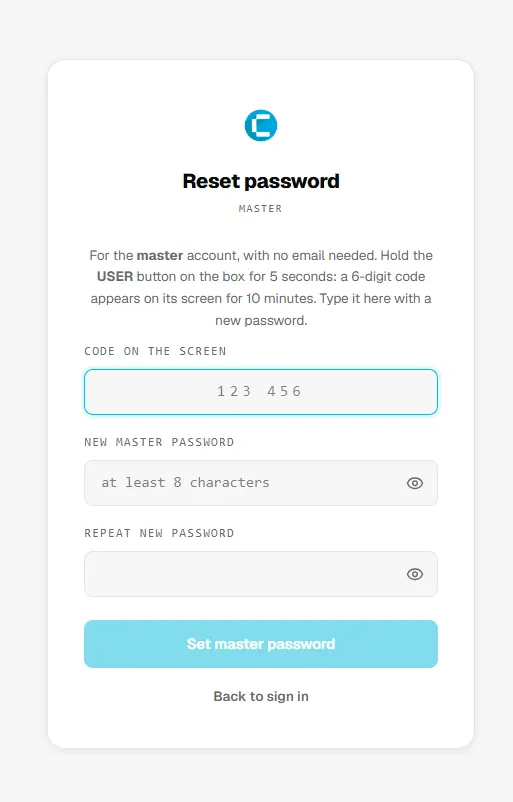
Master Password Reset Page
Source: IRIV EdgeAI Studio User Manual, Rev 1.0 (Draft), Cytron.