IRIV EdgeAI Studio
IRIV EdgeAI Studio is Cytron's no-code AI vision platform for the IRIV EdgeAI CM5. You build vision applications in a web browser by connecting ready-made blocks (nodes), and the AI runs on the device itself, on the Hailo AI accelerator. No cloud service is needed.
IRIV EdgeAI Studio runs on the IRIV EdgeAI CM5 (with its Hailo AI HAT+ and an NVMe drive). It is not for IRIV PiControl, IRIV IO Controller or IRIV SmartHub CM5.
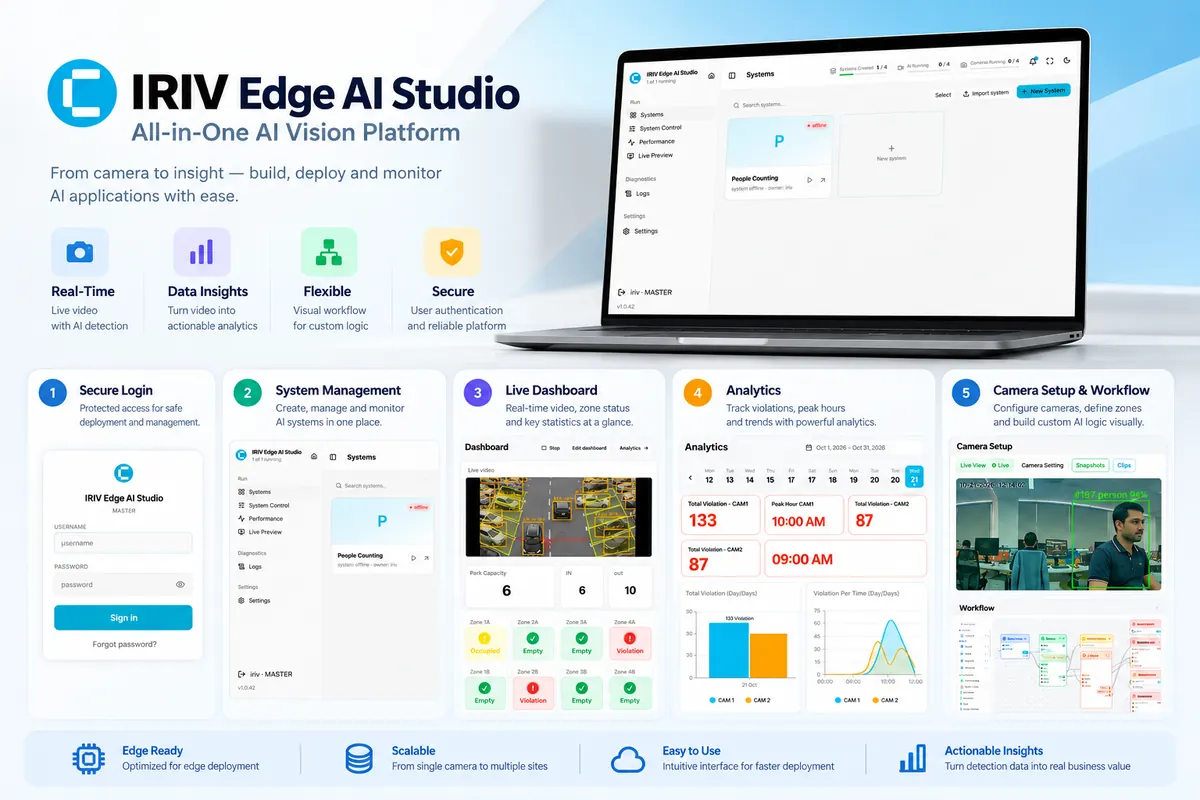
These pages follow the IRIV EdgeAI Studio User Manual, Rev 1.0 (Draft). Screens and wording may change as the software is updated. Older screenshots may still show the earlier name "IRIV Vision Studio".
How It Works
Every IRIV EdgeAI Studio project, called a system, is built from three things:
- A model that recognises objects, for example YOLOv8 for the 80 everyday COCO classes such as person, car and chair.
- A camera with the zones or lines you draw on its picture.
- A workflow that turns each detection into a result: a count, an alert, a database row, a dashboard card, or a message sent out by MQTT, HTTP, Modbus, email or Telegram.
Features
| Feature | What it does |
|---|---|
| Visual Workflow Builder | Create AI vision applications by connecting ready-to-use building blocks. |
| Zone Management | Mark areas and lines in a camera view to count or watch. |
| Dashboard and Monitoring | Live results, history charts, logs and CSV export. |
| Multi-Camera Support | Up to 4 cameras: USB, RTSP/IP, GigE, or a video file for testing. |
| AI Acceleration | Detection runs on the Hailo accelerator, not the CPU. |
| Templates | Start from a ready-made system and change anything later. |
| Over-the-Air Updates | Check, install and roll back software updates from the browser. |
| User and Access Management | Accounts, roles, per-system access and session control. |
| Hardware Integration | Read the IRIV inputs and drive its outputs, LED drivers and buzzer from a workflow. |
| Easy Wi-Fi Setup | Connect straight to the device's own Wi-Fi hotspot on first use. |
Ready-Made Templates
| Template | What it does | Tutorial |
|---|---|---|
| AI People Counting | Counts people crossing a line or standing inside an area. | People Counting |
| AI Object Detection | Detects and counts the objects you choose on a live camera. | Object Detection |
| AI Restricted Zone | Raises an alert when someone enters an area. | Restricted Zone |
| AI Smart Parking | Counts cars in and out, checks each bay and alerts when the car park is full. | Smart Parking |
| Blank Canvas | An empty dashboard and workflow to build your own system. | Getting Started |
What You Need
| Item | Notes |
|---|---|
| IRIV EdgeAI CM5 | With its Hailo AI HAT+ and an NVMe drive (models, footage and datasets are stored on the NVMe). |
| Camera | USB (UVC) camera, IP camera with an RTSP stream, or an industrial GigE camera. |
| Power supply | See Getting Started with the IRIV EdgeAI CM5. |
| Computer with a browser | On the same network as the IRIV. Google Chrome or Microsoft Edge is recommended. |
| Ethernet cable (optional) | To join your local network instead of using the device's Wi-Fi hotspot. |
Limits
- One IRIV runs up to 4 systems, 4 AI processes and 4 cameras at the same time. The counters at the top of the screen show MAX when a limit is reached.
- With USB or GigE cameras the CPU does more work, so fewer cameras or systems may run smoothly than with IP cameras.
- At the default 640×480 the load is lowest; turning on High Resolution raises CPU use.
Words You Will See
| Word | Meaning |
|---|---|
| System | One AI vision project: camera, AI model, workflow and dashboard. |
| Template | A ready-made system you can start from, for example AI People Counting. |
| Model (.hef) | The AI that recognises objects. A .hef file is a model compiled for the Hailo AI chip. |
| Class | A type of object the model knows, for example person or car. |
| Zone / Line | An area or line you draw on the camera picture to count or watch. |
| Workflow / Node | The chain of blocks (nodes) that decides what happens with each detection. |
| NPU / Hailo | The AI chip inside the IRIV that runs the model fast. |
| RTSP | The video stream address used by IP (network) cameras. |
Where to Start
- New to the software? Follow Getting Started to go from a new IRIV to a live people count.
- Want a ready-made project? Pick one of the tutorials above.
- Looking for one screen or setting? Use the user manual pages:
| Page | Covers |
|---|---|
| Connect and Sign In | Hotspot, Ethernet or Wi-Fi, the browser warning, master account, password reset |
| Main Screen and Updates | Sidebar, notifications, capacity counters, system cards, updates and roll back |
| Create a System | New system wizard, system card, setup guide |
| AI Models | Built-in YOLOv8 models, custom .hef models, confidence and classes |
| Camera Setup and Zones | Camera sources, quality, box display, zones and lines |
| Workflow and Nodes | Node palette, main nodes, example workflows |
| System Control and Dashboard | Start/stop, Detection, Snap, Record, Autostart, Dashboard, Live Preview |
| Analytics and Footage | History, charts, logs, CSV, captured photos and clips |
| Database and Dataset | Tables, SQL Playground, dataset capture for training |
| Performance | CPU, RAM, storage, temperatures, NPU load, FPS |
| Settings | Accounts, data retention, Board I/O, front panel, network, HTTPS, email, Telegram, MQTT |
| Troubleshooting | Common problems and fixes |
Related Pages
- IRIV EdgeAI CM5 AI Quick Start: check the Hailo accelerator from the command line.
- IRIV EdgeAI CM5 I/O Reference: wiring for the terminals IRIV EdgeAI Studio can drive.
- IRIV EdgeAI Safety Box Kit and IRIV EdgeAI Industry 4.0 Vision Training.
Source: IRIV EdgeAI Studio User Manual, Rev 1.0 (Draft), Cytron.