Email, Telegram and MQTT
Go to Settings to set up how the device sends email and Telegram messages, and how other devices use its MQTT broker.
Email
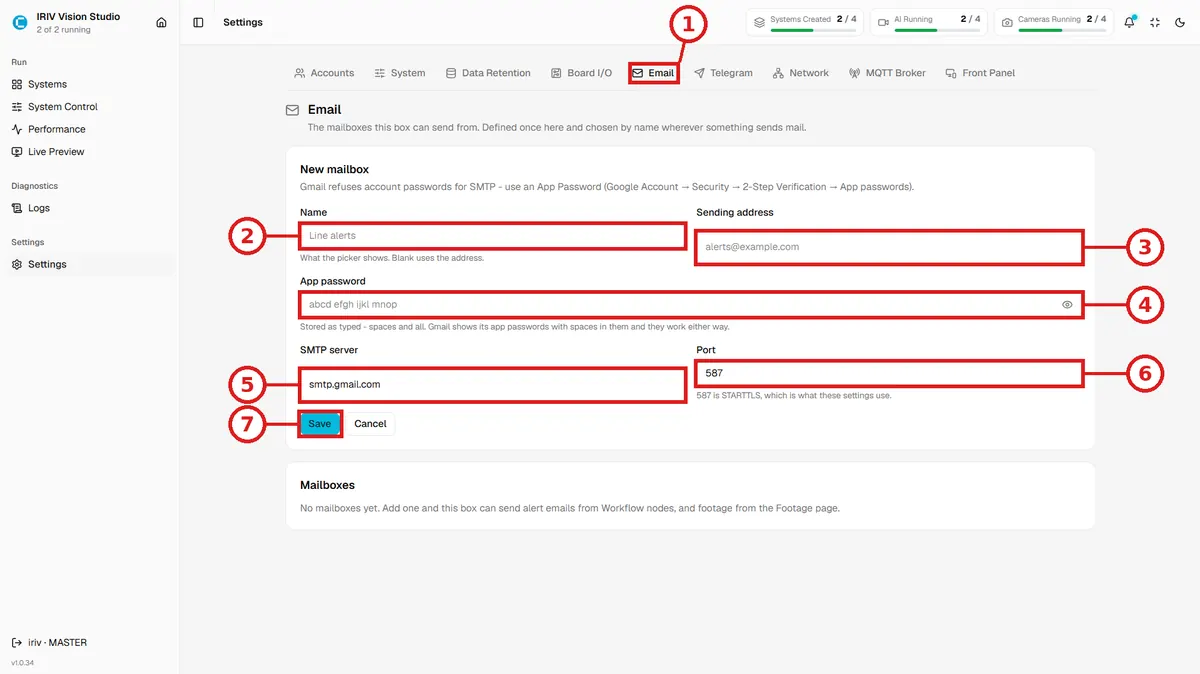
Open the Email tab, click Add mailbox and fill in the form.
-
Email Tab - Lists the mailboxes the device can send from.
-
Name - The name you pick in the Workflow, e.g. Line alerts. Blank uses the address.
-
Sending address - The email address the device sends from.
-
App password - For Gmail, use an App Password, not your normal password (Google Account > Security > 2-Step Verification > App passwords).
-
SMTP server - smtp.gmail.com for Gmail.
-
Port - 587 (STARTTLS).
-
Save - Save the mailbox. It can then be chosen by name, e.g. in a Workflow Email node.
Email must also be switched on in Settings > System.
Telegram
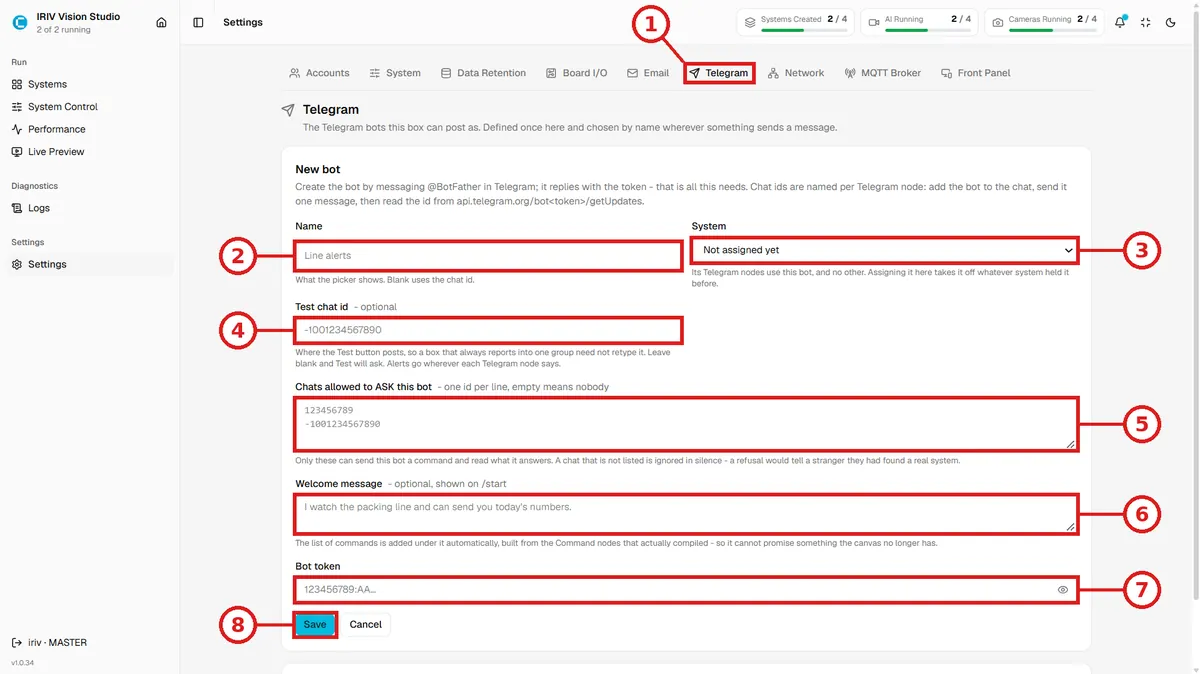
First create a bot with @BotFather in Telegram to get its token. Then open the Telegram tab, click Add bot and fill in the form.
-
Telegram Tab - Lists the Telegram bots the device can post as.
-
Name - The bot's name on this device. Blank uses the chat id.
-
System - Assign the bot to a system. That system's Telegram nodes use only this bot, and assigning it takes it off any other system.
-
Test chat id (optional) - The chat the Test button posts to.
-
Chats allowed to ASK this bot - One chat id per line. Only these chats can send the bot commands; empty means nobody.
-
Welcome message (optional) - The reply to /start. The list of commands is added under it automatically.
-
Bot token - Paste the token from @BotFather.
-
Save - Saves the bot.
To find a chat id, add the bot to the chat, send one message, then open api.telegram.org/bot<token>/getUpdates.
MQTT Broker
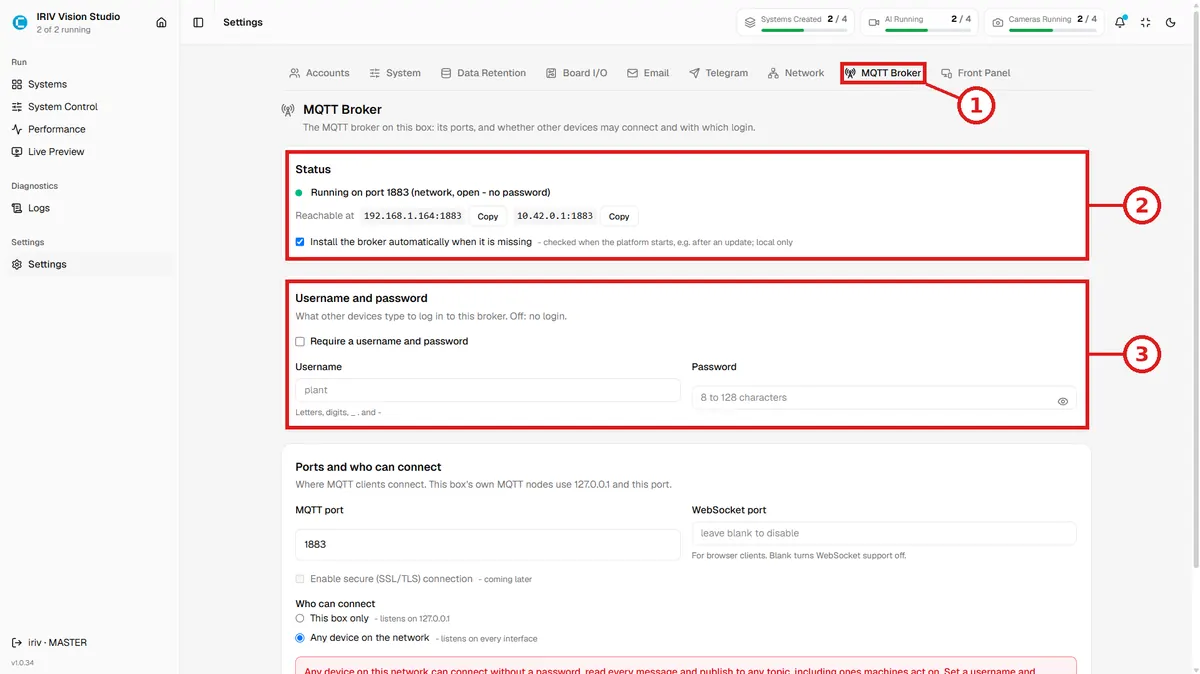
The device has its own MQTT broker for Workflow MQTT nodes and other machines on the network. Open the MQTT Broker tab. Out of the box it runs on port 1883 for any device on the network, with no password.
-
MQTT Broker Tab - Shows the broker's ports and who may connect, with which login.
-
Status - Whether the broker is running, its port (1883 by default) and the addresses other devices can reach it at, each with a Copy button.
- Install the broker automatically when it is missing - reinstalls it when the platform starts, e.g. after an update.
-
Username and password - Tick Require a username and password, then enter the Username and Password (8 to 128 characters) other devices must log in with.
-
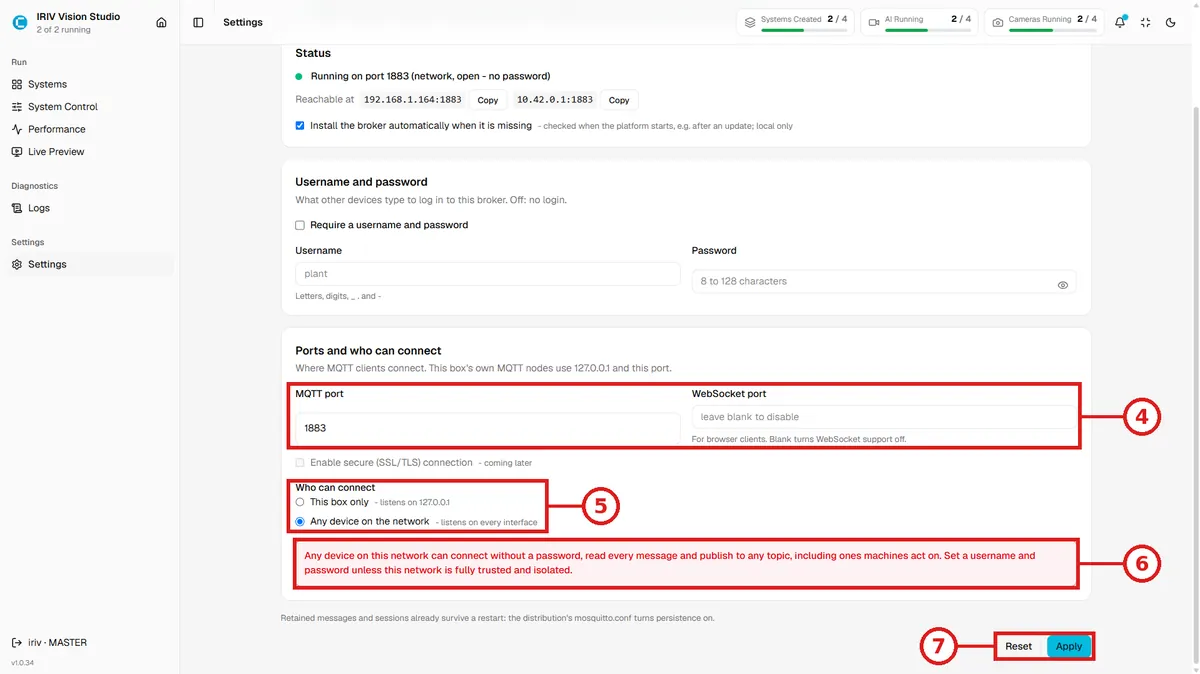
MQTT port and WebSocket port - MQTT port is 1883 by default. WebSocket port is for browser clients; leave it blank to turn it off.
-
Who can connect
-
This box only - listens on 127.0.0.1 only.
-
Any device on the network - listens on every interface.
-
-
Open Broker Warning - Appears when any device on the network can connect without a password.
-
Reset / Apply - Click Apply to save, or Reset to undo your changes.
An open broker with no password lets anyone on the network read and send messages, including on topics that machines act on. Set a username and password unless the network is fully trusted and isolated.
Source: IRIV EdgeAI Studio User Manual, Rev 1.0 (Draft), Cytron.