Main Screen and Updates
Main Interface
After logging in to IRIV EdgeAI Studio, you will be directed to the main interface.
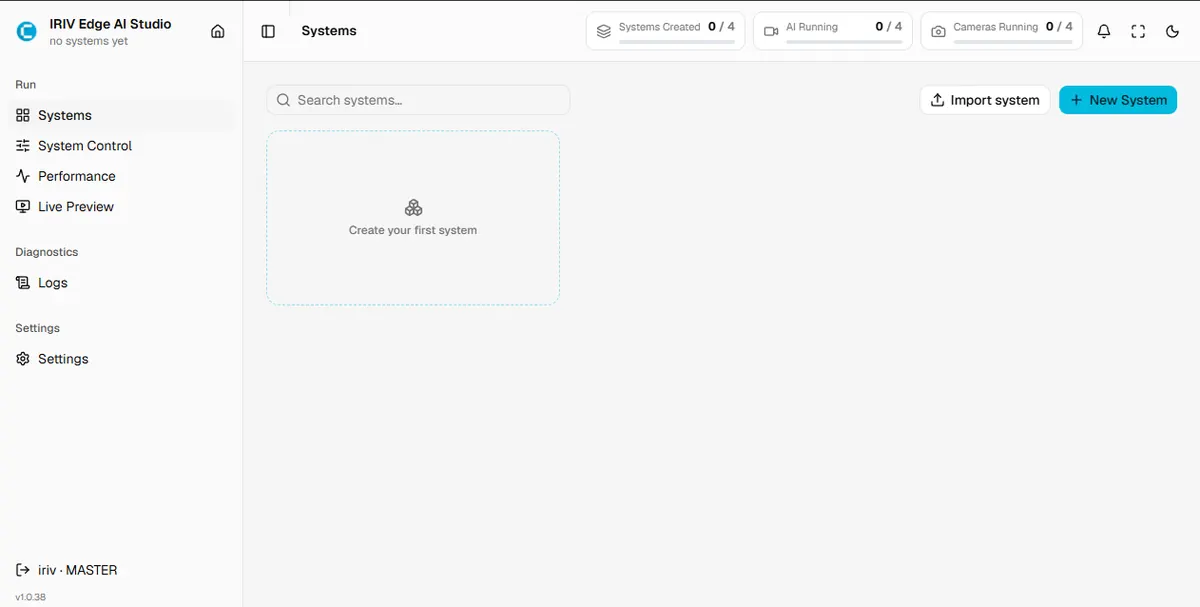
IRIV EdgeAI Studio Main Interface
The main interface contains several sections that help you navigate the software, manage systems, monitor device status, and access configuration options.
Sidebar
The sidebar provides quick access to the system's main navigation features.
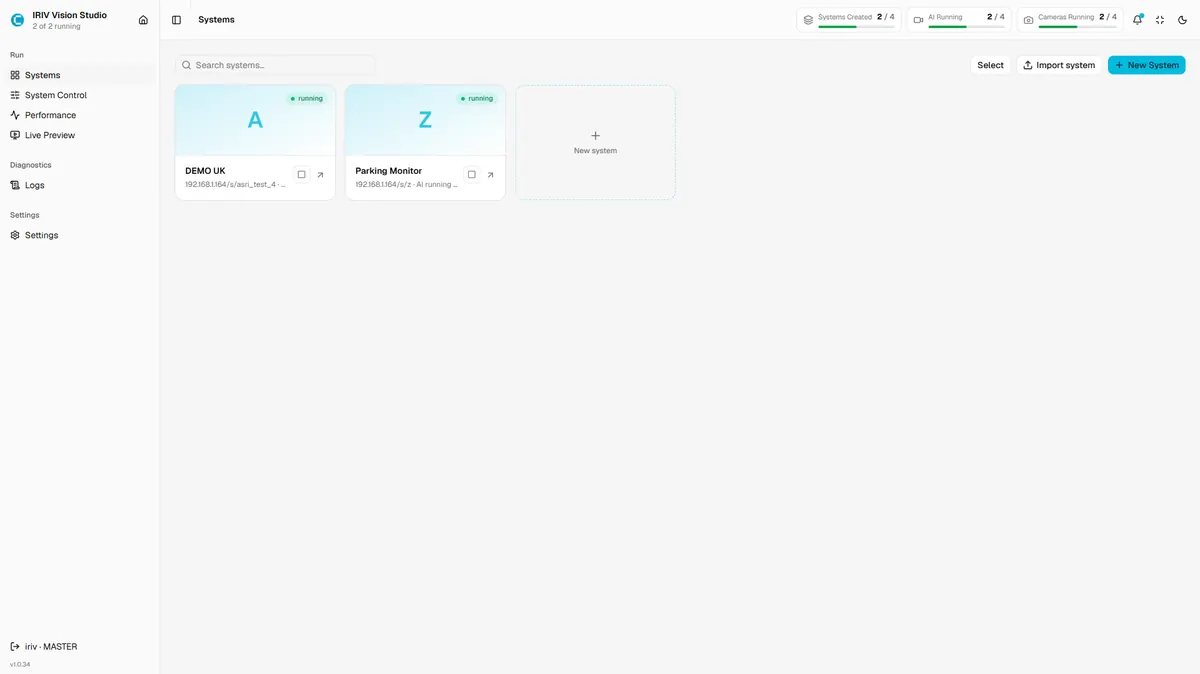
Sidebar Navigation and Toggle Controls
-
Home Logo - Click the home icon to return to the main page.
-
Sidebar Toggle: Click the sidebar toggle icon to expand or collapse the sidebar, allowing you to adjust the workspace according to your needs.
-
Systems - Create, open, start, or stop systems.
-
System Control - Start or stop a system and switch between Detection, Snap, Record, and Autostart modes.
-
Performance - View device and Hailo health information.
-
Live Preview - View up to four live camera feeds simultaneously.
-
Logs - Access the device-wide Log Hub for system logs.
-
Settings - Manage accounts, network settings, and other device settings.
System Management Buttons
The System page provides three buttons for managing system configurations.
-
Select - Select a system to delete.
-
Import system - Import an exported system into the application.
-
+ New System - Create a new system.

System Management Buttons
Notification Panel
Click the Bell icon to open the notification panel. The panel contains two tabs: Inbox and System.
Inbox - The Inbox tab displays recent activity notifications, including information about the latest system updates.
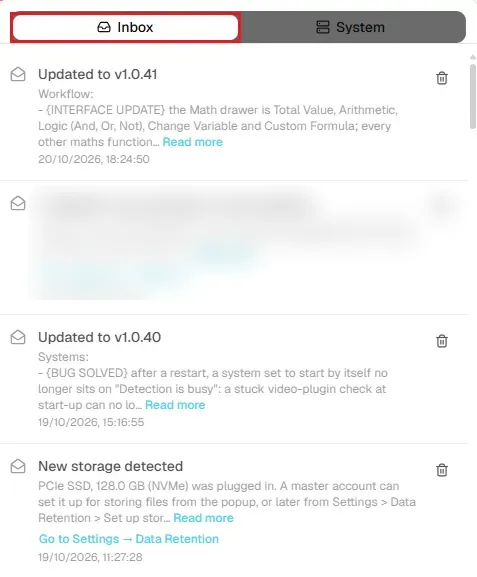
Inbox Notification Panel
System - The System tab displays the software version currently running on the device, the last time the system checked for updates, and the previous version available for rollback.
-
Check Now - Check immediately for available updates. The result appears below the controls, indicating whether the system is up to date or an update is available.
-
Update Manually - Update the system using an update file downloaded to your computer. Click this button and select the update file.
-
Roll Back - Restore the previous version if an update causes problems.
-
Check for Updates Automatically - Enable this option to check for updates automatically. When disabled, the system checks for updates only when you click Check Now.
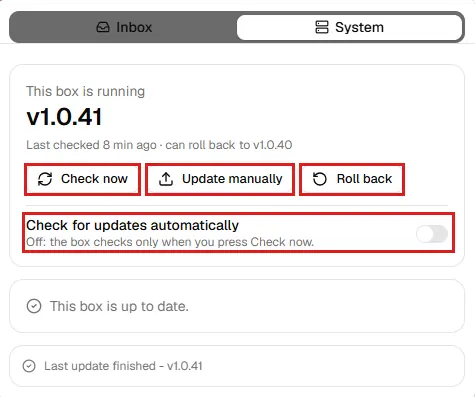
System Update and Version Management
System Capacity Monitor
The System Capacity Monitor displays the number of systems created, AI processes running, and cameras running. Each category has a maximum capacity of four, as shown in the interface.
-
Systems Created - Displays the number of systems created.
-
AI Running - Displays the number of active AI processes.
-
Cameras Running - Displays the number of active cameras.
For example, the counters may display 2/4 Systems Created, 1/4 AI Running, and 1/4 Cameras Running.
IRIV EdgeAI Studio supports up to four systems, four running AI processes, and four running cameras simultaneously when using IP cameras, subject to the device's available resources. When using USB or GigE cameras, AI processing may place additional demands on the CPU, which can limit the number of cameras or systems that can run simultaneously. Actual performance depends on the workload and available CPU resources. When a category reaches its maximum supported capacity, the corresponding counter displays MAX.

System Capacity Monitor
System Space
The System Space displays the systems available in IRIV EdgeAI Studio. Each system is represented by a card showing its name, status, and owner. Use the search bar to find a specific system.
Each system card may include the following elements:
-
System Name - Displays the name of the system.
-
System Status - Indicates whether the system is running, online or offline.
-
Owner - Displays the system owner.
-
Open System - Click the play icon to open or launch the system, depending on its current state.
-
Open in New View - Click the arrow icon to navigate to the system's detailed view.
If no systems have been created, the System Space displays a message prompting you to create your first system.


System Space and System Cards
Account and Device Power Menu
Click the account menu at the bottom of the sidebar to display the available account and device options.
The menu contains the following options:
-
Sign Out - Sign out of the current account and return to the sign-in page.
-
Reboot - Restart the IRIV device.
-
Shut Down - Power off the IRIV device.
The currently signed-in account name is displayed at the bottom of the menu.

Account and Device Power Menu
Update the Software
- On the main page, click the Bell icon to open the notifications panel.
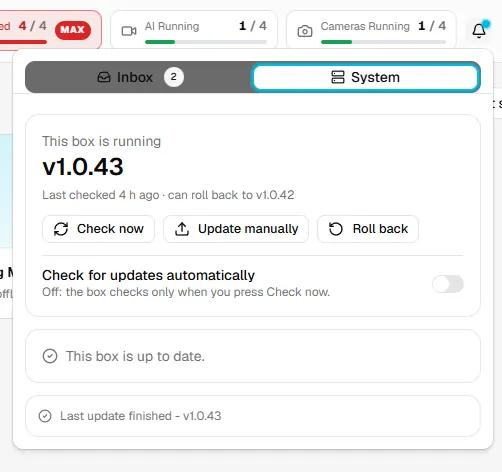
Checking the Current Software Version
- Click Check Now to check for the latest software version. If an update is available, the new version will be displayed.
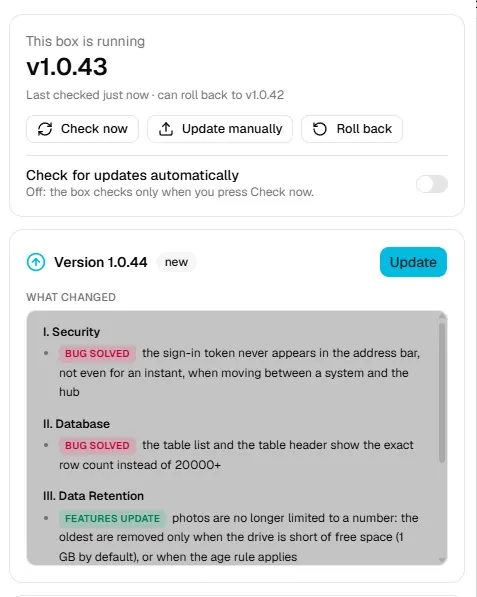
Available Software Update
- Click Update. A confirmation pop-up will appear.

Update Confirmation
- Wait for the update to finish. Do not navigate away from the page or interrupt the update process.

Software Update Progress
- Once the update is complete, a prompt will ask you to restart the device. Click Restart Now.

Restart Prompt After Updating
- Wait for the device to restart, then refresh the browser page after a few seconds. Check the update status to confirm that the latest version has been installed successfully.
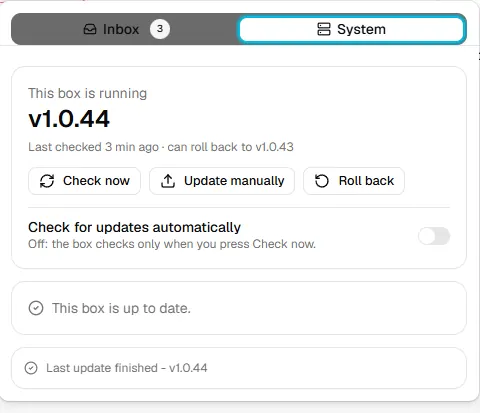
Verifying the Installed Version
Enable Check for updates automatically if you want to be notified when new updates are available.
- Click Inbox to see the updated version details.

Updated Version Notification
- Click the Read more link to see what changed.
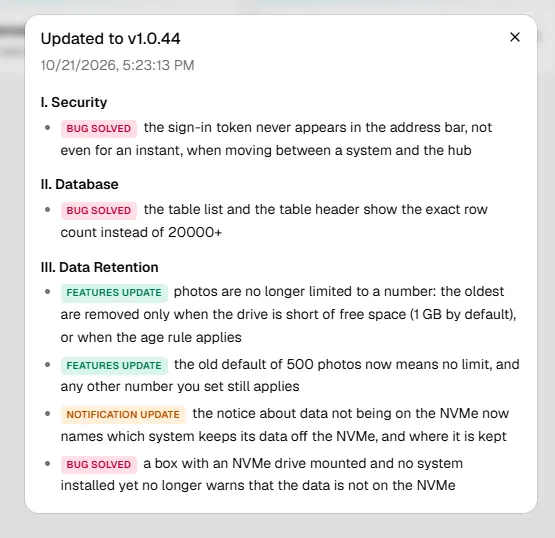
Software Update Details
Source: IRIV EdgeAI Studio User Manual, Rev 1.0 (Draft), Cytron.