Board I/O and Front Panel
Choose which IRIV terminals IRIV EdgeAI Studio controls, and set up the OLED screen, USER button and buzzer on the front panel. For wiring, see the IRIV EdgeAI CM5 I/O Reference.
Board I/O
Go to Settings > Board I/O.
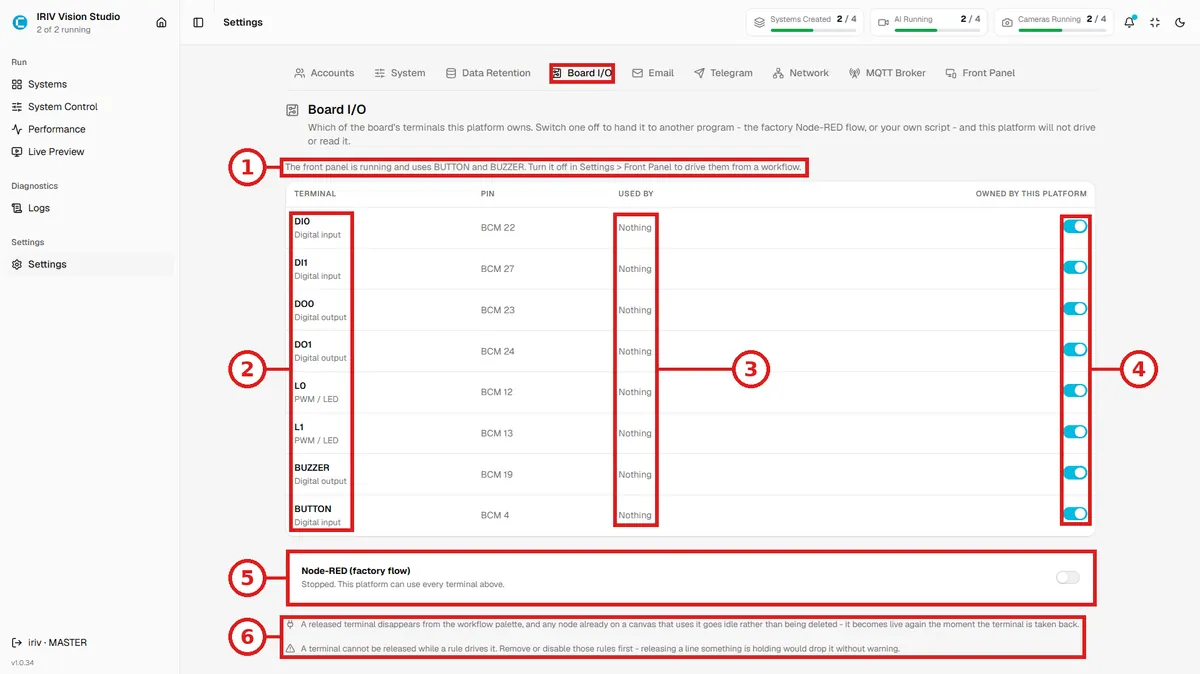
Board I/O decides which of the board's terminals IRIV EdgeAI Studio controls. Terminals it owns can be used by Board I/O nodes in the Workflow.
-
Front panel notice - While the front panel is running it uses BUTTON and BUZZER; turn it off under Front Panel to drive them from a workflow.
-
Terminal
-
DI0, DI1 - digital inputs (BCM 22, BCM 27).
-
DO0, DO1 - digital outputs (BCM 23, BCM 24).
-
L0, L1 - PWM / LED lighting outputs (BCM 12, BCM 13). They switch VIN and are not powered from USB-C.
-
BUZZER, BUTTON - digital output (BCM 19) and digital input (BCM 4).
-
-
Used By - Shows which rule is using each terminal.
-
Owned by this platform - Switch a terminal off to hand it to another program instead of IRIV EdgeAI Studio; it will then not read or drive it.
-
Node-RED (factory flow) - Starts or stops the pre-installed Node-RED flow. If you control a terminal from Node-RED or your own program, release it here first so two programs do not drive it at once.
-
Release rules
-
Released terminal - disappears from the Workflow palette; nodes already using it go idle and come back when it is taken back.
-
Driven terminal - cannot be released while a rule drives it; remove or disable those rules first.
-
Front Panel
Go to Settings > Front Panel.
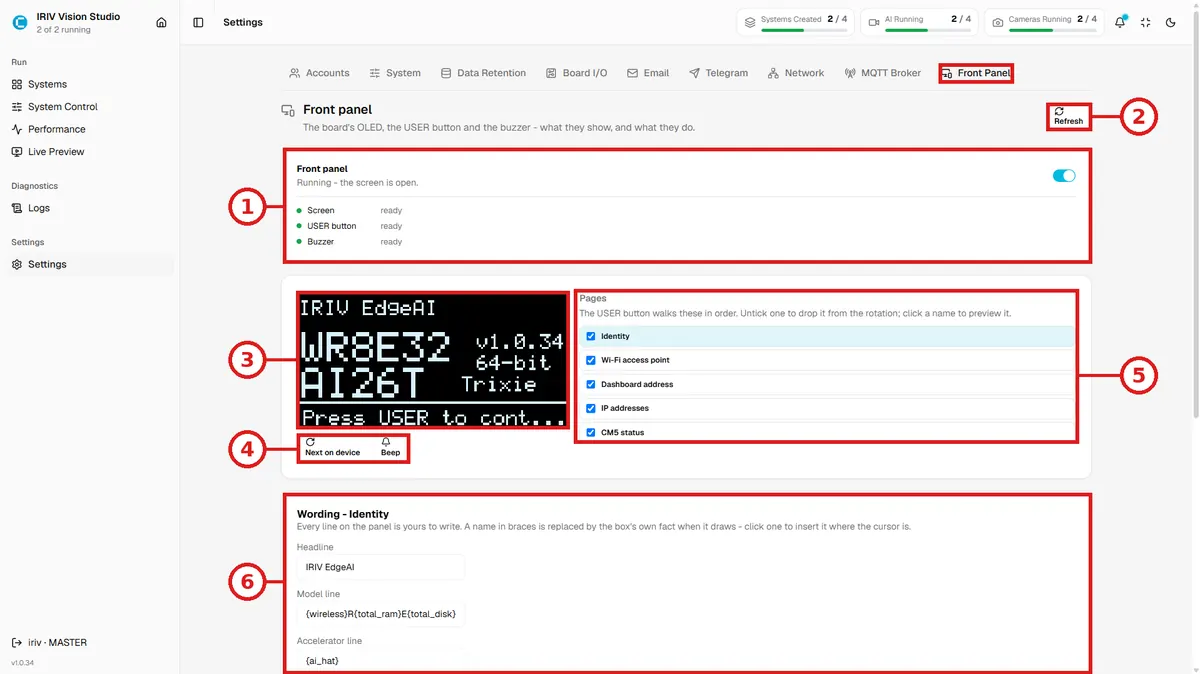
The Front Panel controls the board's OLED display, the USER button and the buzzer.
-
Front panel switch - Turns the front panel on or off and shows whether the Screen, USER button and Buzzer are ready.
-
Refresh - Reloads the front panel status.
-
Preview - Shows what the OLED is displaying.
-
Next on device / Beep
-
Next on device - moves the real display to the next page.
-
Beep - sounds the buzzer.
-
-
Pages - The pages the USER button steps through: Identity, Wi-Fi access point, Dashboard address, IP addresses and CM5 status. Untick a page to drop it from the rotation, or click its name to preview it.
-
Wording - Edit the text of the selected page (see below).
Scroll down to edit the wording and controls, then click Save.
-
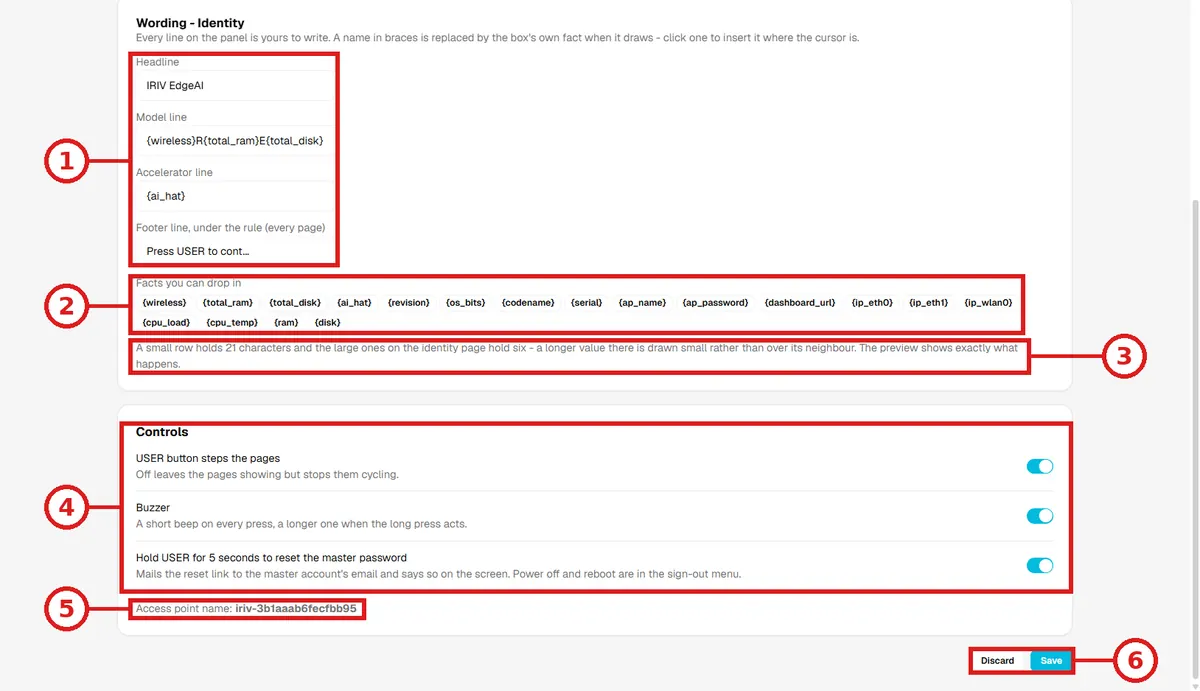
Wording lines - Every line of the page can be edited, including a footer line shown under the rule on every page.
-
Facts you can drop in - A name in braces is replaced by the device's own information; click a fact such as
{ai_hat}or{cpu_temp}to insert it. -
Length limits - A small row holds 21 characters and the large Identity rows hold six; the preview shows exactly how it will look.
-
Controls
-
USER button steps the pages - turn off to keep the pages showing without cycling.
-
Buzzer - a short beep on every press, a longer one when a long press acts.
-
Hold USER for 5 seconds - starts a master password reset (see Forgot the master password).
-
-
Access point name - The device's access point name, shown for reference.
-
Discard / Save - Click Save to keep your changes, or Discard to undo them.
Source: IRIV EdgeAI Studio User Manual, Rev 1.0 (Draft), Cytron.